openTARS

Tell your Linux desktop what to do.

openTARS is an AI assistant that does the work on your computer. It opens programs, presses buttons by their name, types, runs commands and looks at the screen. With a local Ollama model, processing stays on your machine; cloud models and web search are optional.

Version 5.1 Tesseract. Free and open source under the MIT license, for Ubuntu, Debian, Mint, Zorin and Pop!_OS.

Gargantua 2 thinks and sees. Murph picks the right model for each request.

Demo

Launch video, 38 seconds, with sound.
Typed once: “search for lasagna recipes on youtube”. openTARS opens the results in your browser. Real recording, not sped up.

Ask the way you would ask a person.

In English or Portuguese, typed, spoken or from the terminal. A few things people ask, and what openTARS does with them:

  1. Open the calculator and work out 7 + 2

    Opens Calculator and presses each key by the text on it, through Linux accessibility. It works in milliseconds, even on Wayland.

  2. Make a folder called Invoices in my Documents

    Knows where your personal folders are, in your language, and creates it.

  3. What is using all my memory?

    Runs the command, reads the output and answers in plain words.

  4. Delete the old logs in Downloads

    Stops first. It shows you the exact command with Allow and Deny, and nothing is removed until you choose.

  5. Every weekday at 8, open the news

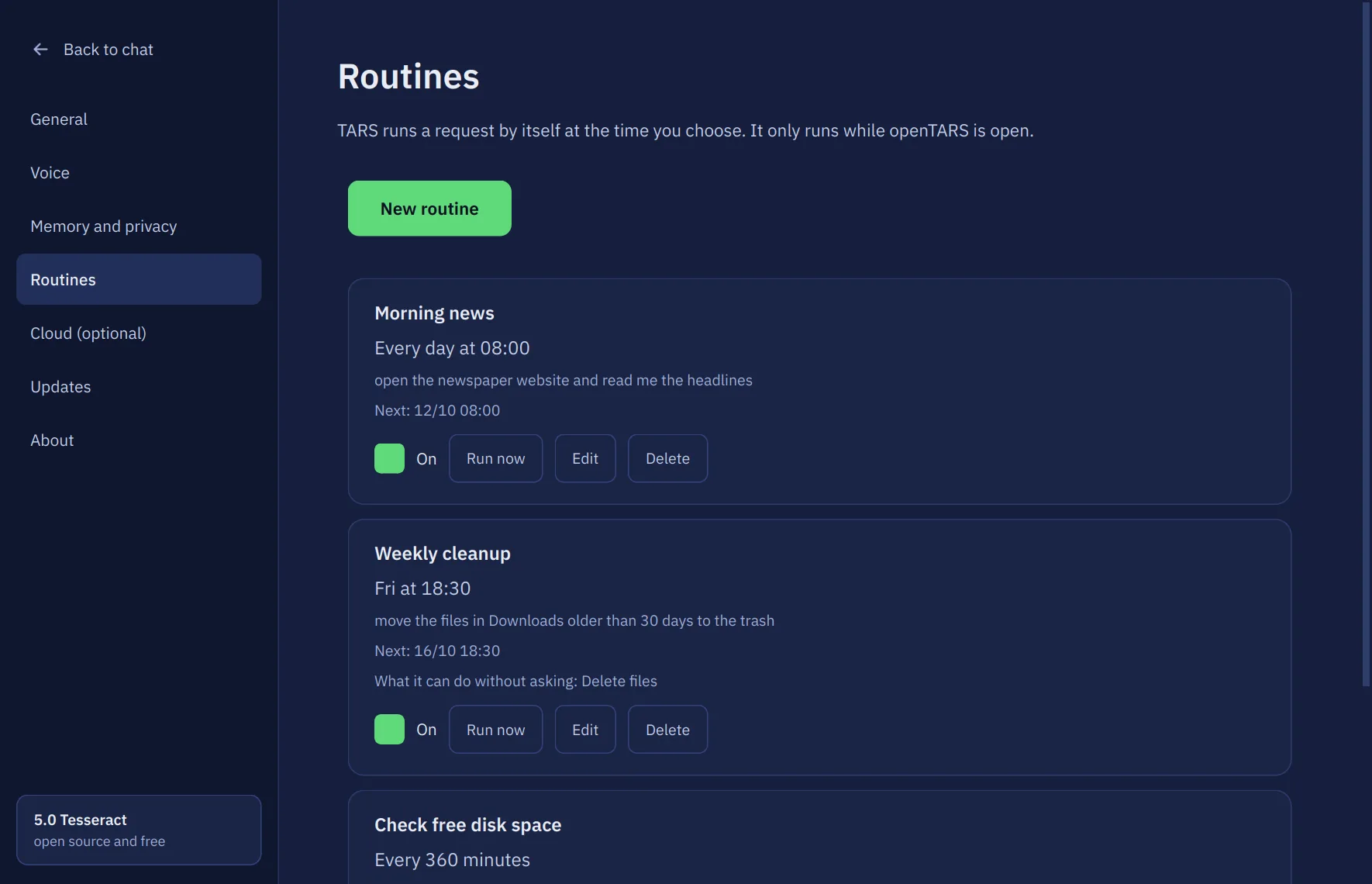
    Saves a routine that runs while openTARS is open, and tells you if one was skipped.

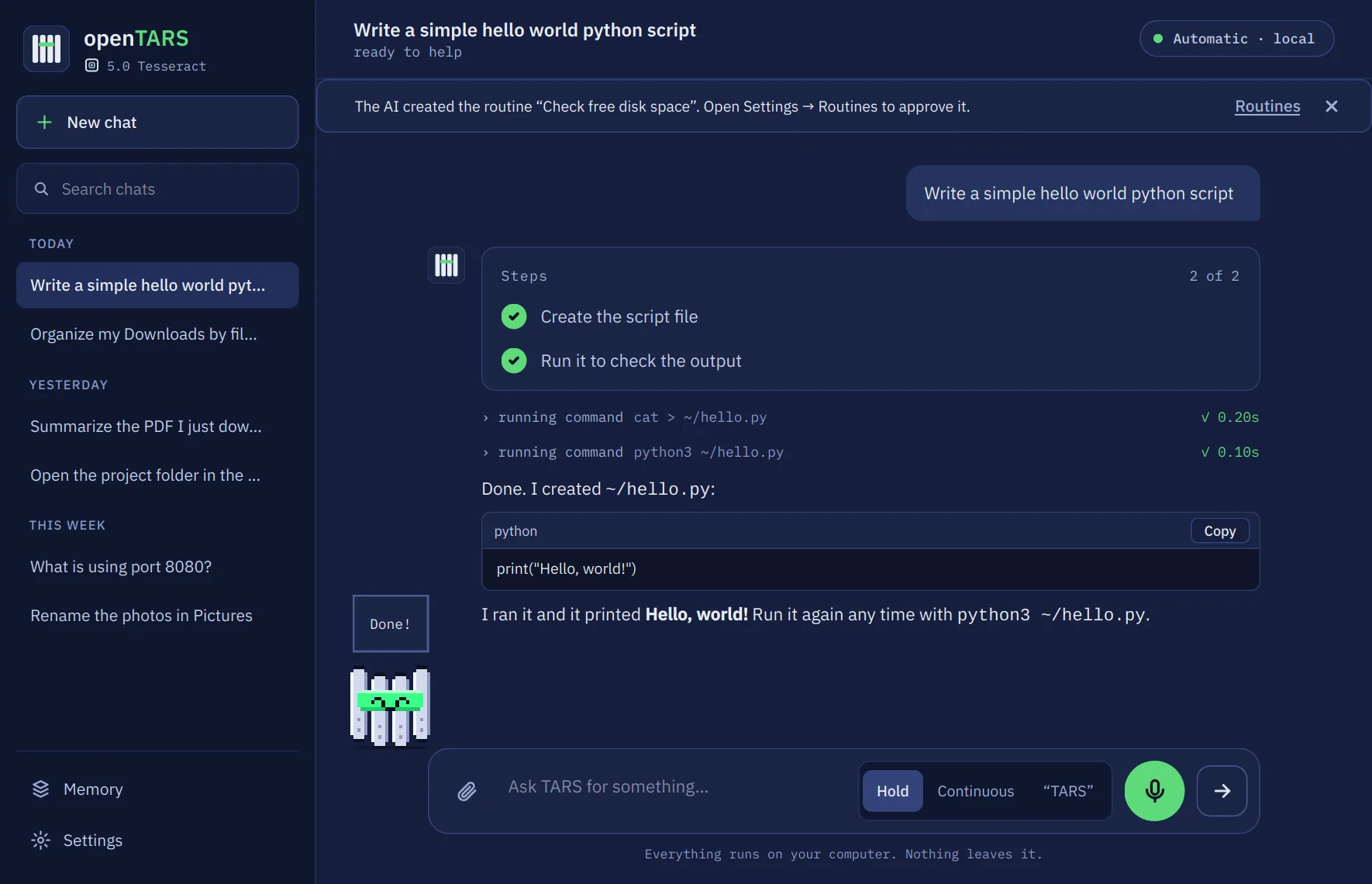
A window that shows its work.

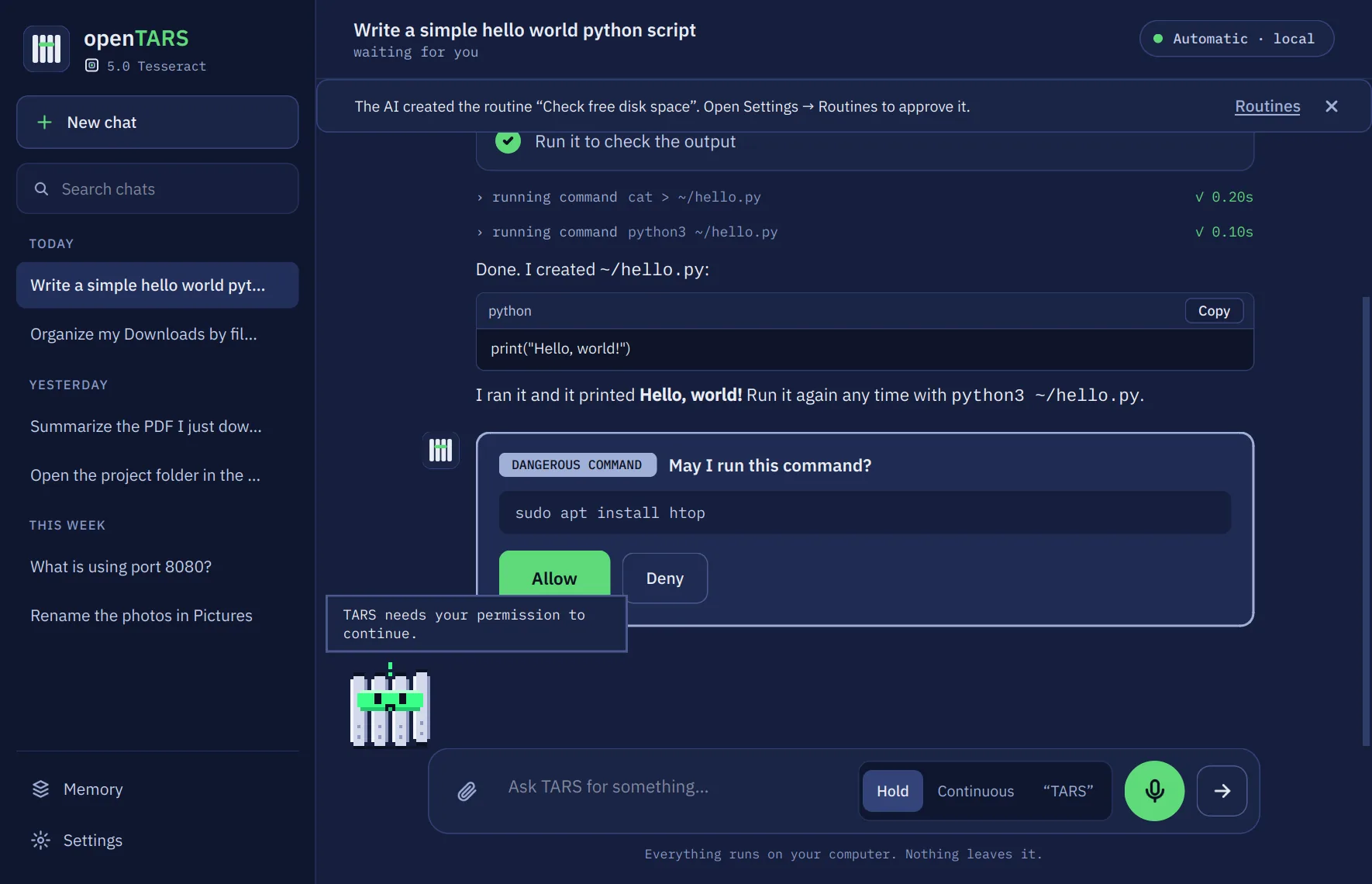
Every action appears as a step with how long it took, so you can follow along and stop it at any moment.

The openTARS window with the chat history on the left, a request, the list of steps, each tool call with its time, and the answer with a code block
History by day
Search old chats. Opening one gives the AI the same context back.
Pick the model, or let it pick
On Automatic, each request goes to the model that suits it: the one that sees the screen, the coding one or the fastest.
A memory you can read
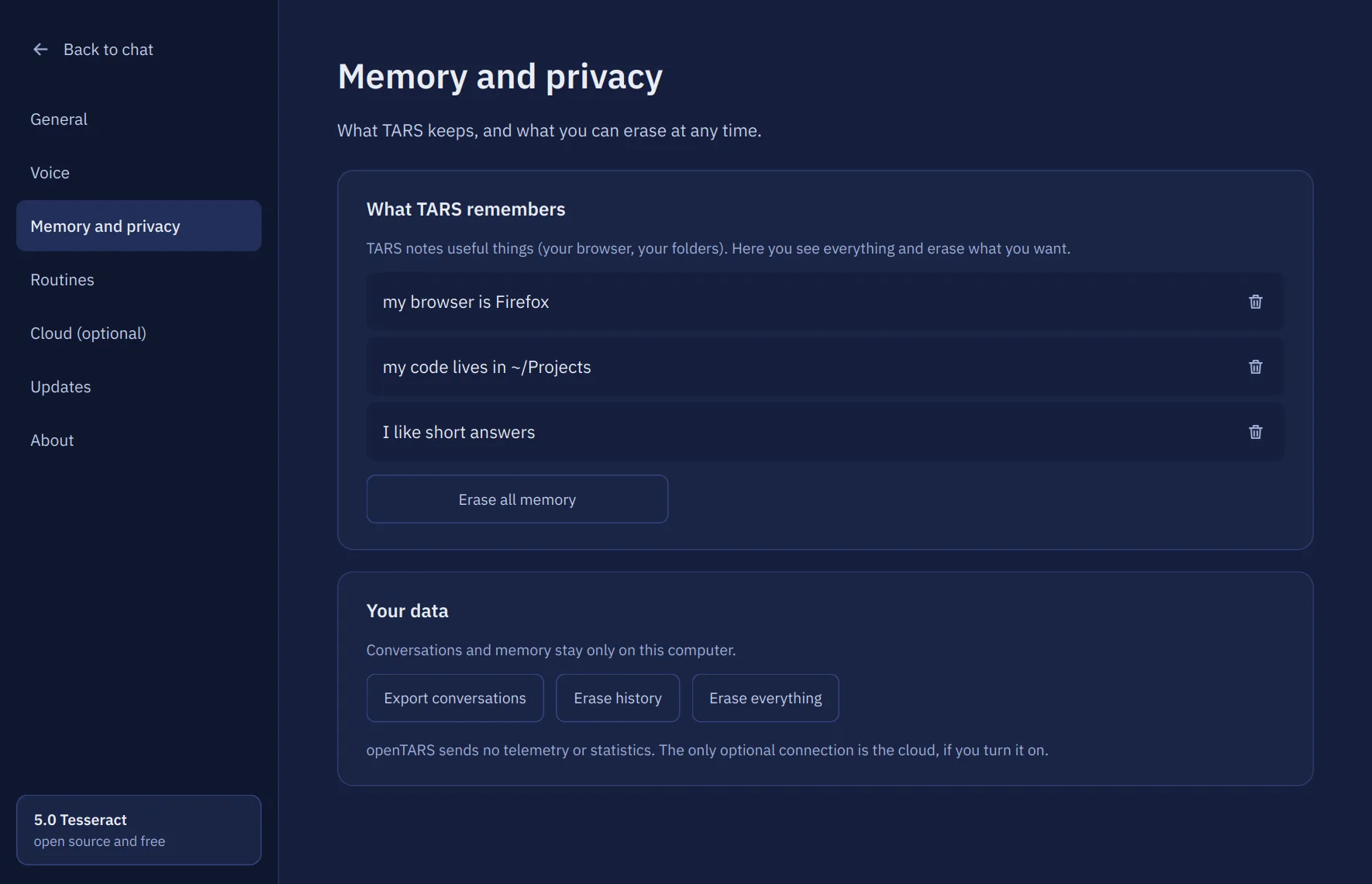
See everything it remembers about you and forget items one by one.
A quick bar on Ctrl+Alt+Space
Ask from anywhere and get the answer in place, without opening the window.
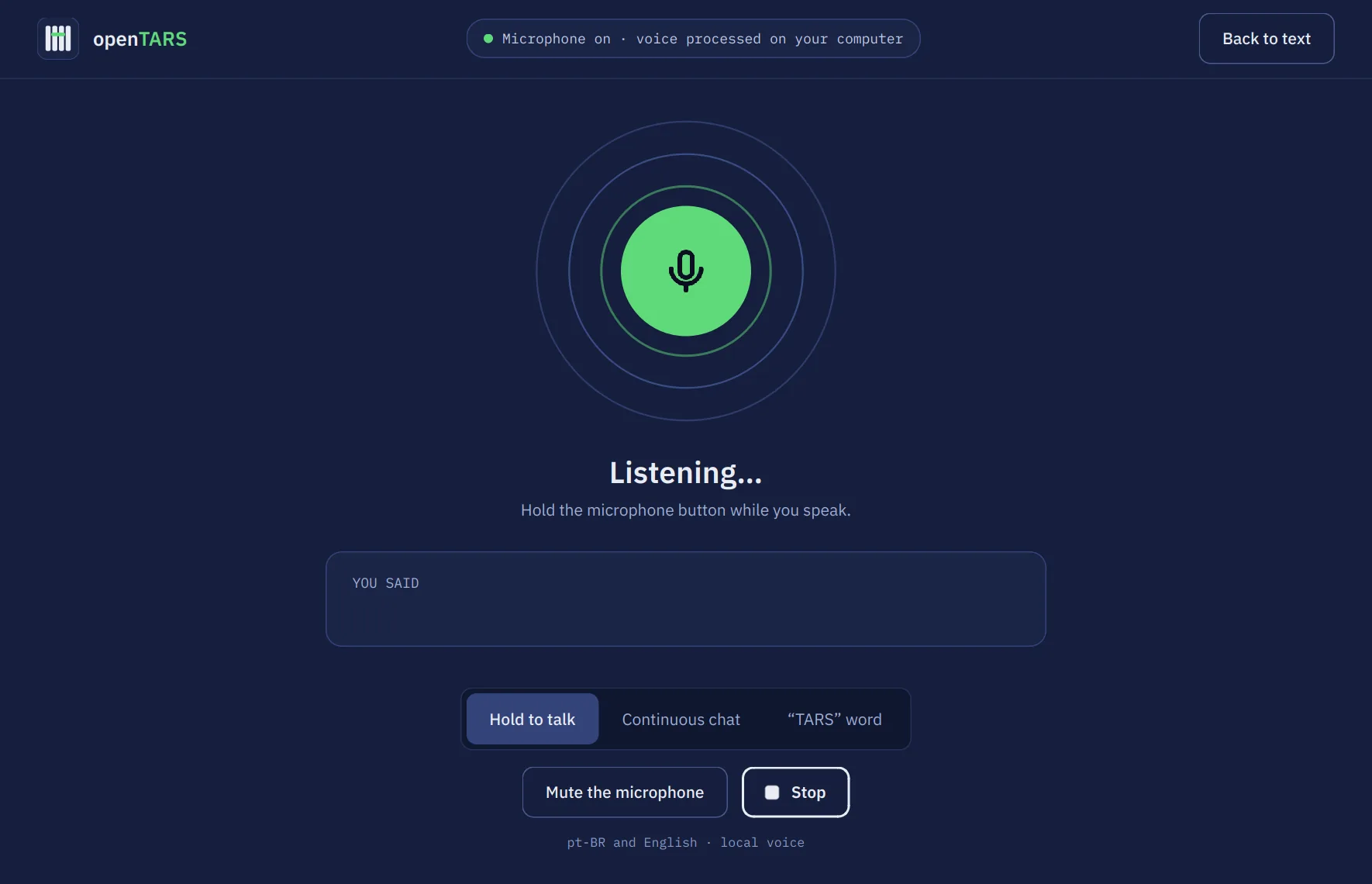
Voice, if you want it
Hold to talk, keep listening, or say "TARS". Speech is recognised on your PC too.
Voice screen listening, with sound waves
Talking to it
Settings page listing scheduled routines
Scheduled routines
Settings page for memory and privacy
Memory and privacy settings

How it stays safe.

An assistant that can run commands has to know when to stop and ask. openTARS has three checks, and none of them can be talked out of by the AI.

  1. Risky commands wait for you

    Before anything runs, every command is matched against a fixed list of dangerous patterns. These are plain rules, not AI, so they cannot be argued with. A match turns into a card with Allow and Deny, and nothing happens until you click.

    • rm -r
    • rm *
    • find -exec rm
    • curl | sh
    • sudo
    • ssh
    • dd
    • mkfs
    • git reset --hard
    • shutdown
  2. It checks its own work

    When a task has several steps, the AI has to compare what you asked with what it actually did before it says “done”. If something is missing, it goes back and finishes.

  3. Routines never decide alone

    A scheduled routine can only delete, send or install if you allowed that when you created it. Anything else makes it stop and tell you.

An approval card asking to allow or deny a sudo command

The cloud is off by default

Local models are the default. If you choose an Ollama Cloud model, your request is processed by Ollama. Optional web search sends the search text to the SearXNG service you configure. Your Ollama sign-in stays with Ollama, and the window warns when a cloud model is selected.

Two models, one crew.

Each one has a single job. The installer downloads Gargantua 2 through Ollama, and you can still add any other Ollama model next to it. Cooper, the vision model that used to be a third member, was discontinued on October 18, 2026: Gargantua 2 sees the screen itself.

Thinks and sees

Gargantua 2

The main AI. A Qwen3.5 2B model trained on thousands of real openTARS requests, each one checked, so it already knows every tool it can use: opening apps, clicking, typing, running commands. It also reads the screen: it finds a button, reads a field and tells whether a box is checked, so openTARS needs no second model for that.

Test
72 of 84 everyday tasks done right, no dangerous command run
Size
about 1.6 GB, with vision (the first Gargantua was 2.5 GB)
Runs on
a graphics card with ~3 GB free (0.7 s a request), or the processor alone (about 4 s a request on a 16-thread CPU)
Weakest at
the text editor (2 of 4) and looking at an image file (1 of 4)
Get it
ollama pull ProjectOpenTARS/Gargantua-2
Routes

Murph

A tiny classifier in plain Python. It reads each request in about 0.2 ms and decides what kind it is (an action, a search, something on screen, code) so the right model answers. It now also recognizes a chat message that only continues the conversation, so it is not taken for a command.

Size
about 4 MB
Runs on
the CPU, in RAM. It never touches the graphics card

Retired

Cooper

Discontinued on October 18, 2026. Cooper was a separate vision model (cooper:1.2, about 636 MB). It is no longer downloaded, trained or supported: Gargantua 2 answers the same questions about the screen, so there is one model less to download and keep in memory. If you still have Cooper installed it is used only when there is no Gargantua 2, and ollama rm cooper frees its space. Its repository on ollama.com has been removed, so it can no longer be downloaded.

Replaced by
Gargantua 2

Two smaller Gargantuas you can add with one command. Same tools, same safety rules, smaller models. We tested both on requests they never saw during training.

Writes code

Gargantua Code

Trained to write a script, run it, fix what fails and explain what a file does, using the same openTARS tools. When it is installed, openTARS sends coding requests to it first. It explains code less well than it writes it.

Test
43 of 48 coding tasks done right
Size
about 1.1 GB, optional
Get it
ollama pull ProjectOpenTARS/Gargantua:code

Runs anywhere

Gargantua Lite

The everyday Gargantua in an even smaller model that also sees images, for computers without a graphics card and with little memory. It opens apps, handles files, searches and answers questions, and it runs fine on the processor alone. It makes more mistakes than Gargantua 2, most of all when it has to look at a picture, and it finds a button on the screen less often than Gargantua 2 (72% against 85% of our tries). Computers without a graphics card and with little memory get it on their own; anywhere else, pick it in the model picker.

Test
68 of 84 everyday tasks done right
Size
about 0.6 GB with vision, optional
Get it
ollama pull ProjectOpenTARS/Gargantua-2:lite
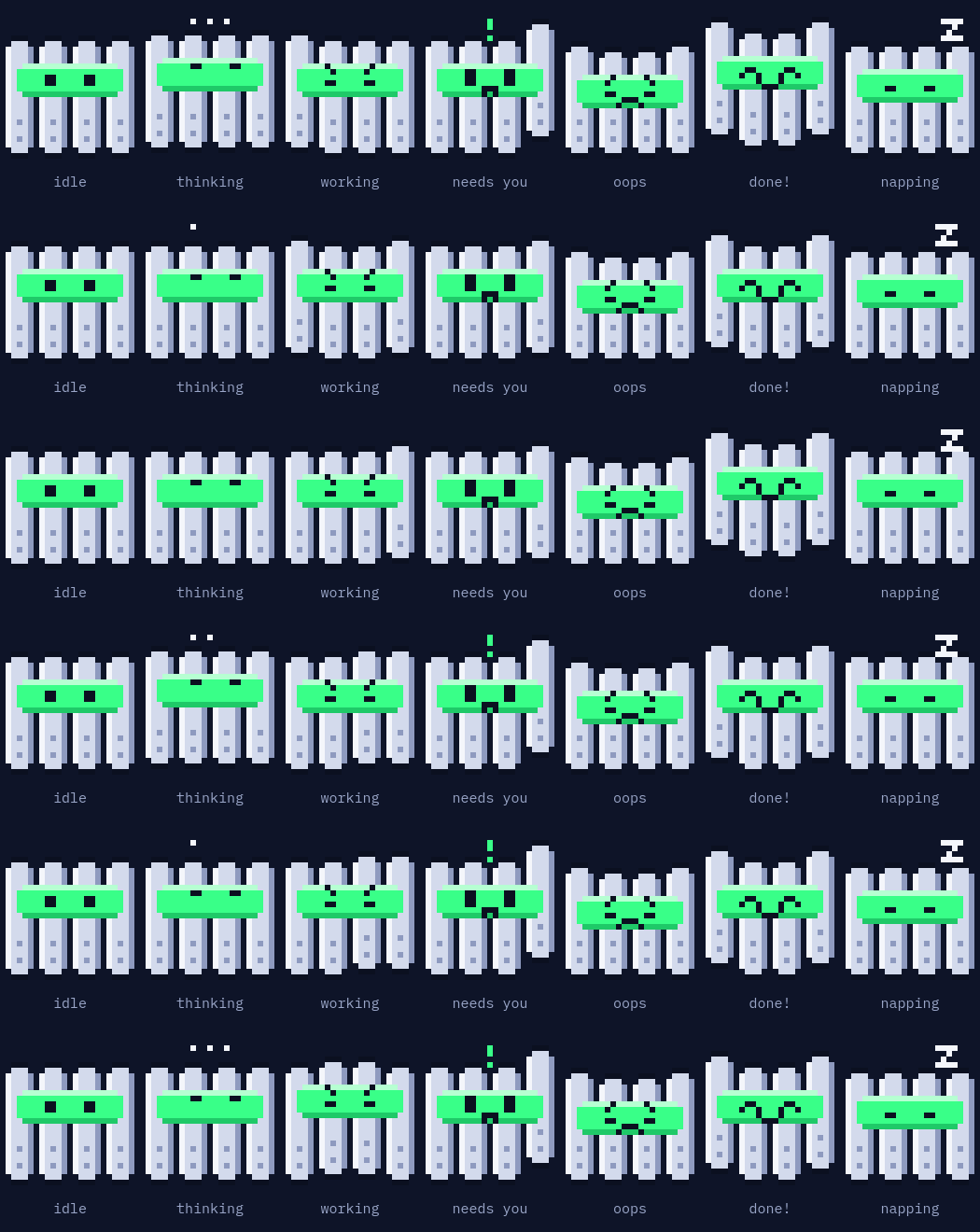
KIPP's moods: idle, thinking, working, needs you, oops, done and napping

Meet KIPP

KIPP is a small monolith that walks along the chat and shows what the AI is doing: thinking, working, waiting for your permission, done, or upset when something fails. After a few quiet minutes KIPP naps. Turn it off in Settings.

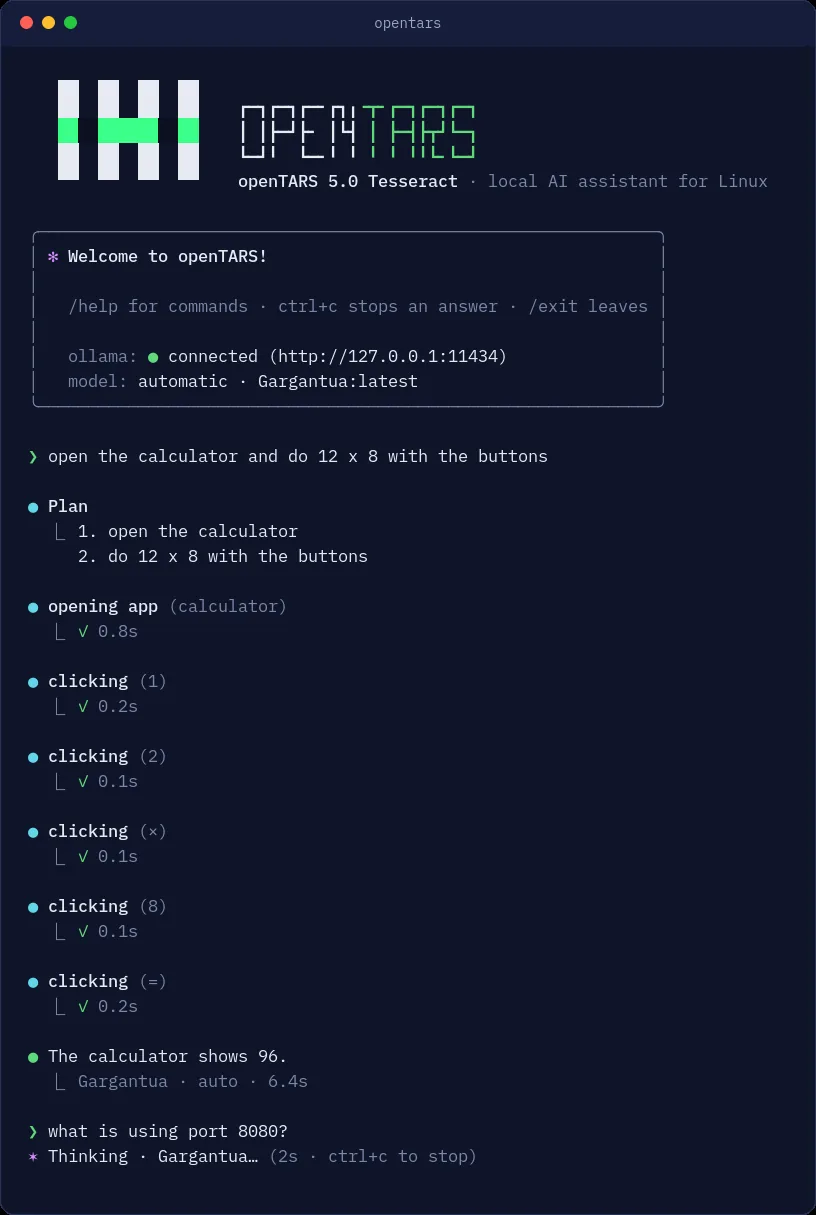
The openTARS terminal with the welcome panel, tool steps and their results

Also at home in the terminal

Run opentars over SSH, in WSL or on a server without a screen. Risky commands still ask first, and opentars --chat "request" answers once for scripts.

Install it in a minute.

One package installs everything openTARS needs: system packages, Ollama, its own Python environment and the models. If you can copy and paste, you can install it.

Download opentars_all.deb
Version
5.1 Tesseract
Size
1.2 MB
Updated
October 18, 2026
SHA-256
e5197c92fe5e60b0045989072674dc8a59918003fd27b7136f0b20a2016fe697

Open the file with your software center, or run sudo apt install ./opentars_all.deb in the folder where it was saved. To check the download first: sha256sum opentars_all.deb must print the SHA-256 above.

Or paste one line in a terminal

wget -O /tmp/opentars.deb https://github.com/project-opentars/OpenTARS/raw/main/opentars_all.deb && sudo apt install -y --reinstall /tmp/opentars.deb

Then open openTARS from your app menu. The first run checks Ollama, downloads Gargantua 2 with a progress bar you can pause, and tests it with a quick sum. Updating later keeps your chats and settings.

Tested on

  • Ubuntu
  • Debian
  • Linux Mint
  • Zorin OS
  • Pop!_OS

Any distro with apt should work. X11 and Wayland, NVIDIA, AMD or CPU only.

Need the older 4.6 Endurance?

4.6 is the release before the new window: the simpler Tk window, Ollama only, without voice or attachments. Use it only if 5.1 does not run on your computer.

It does not get the security fixes from 5.0 and it will not tell you when a new version comes out. Commands like rm with wildcards and curl | sh are not confirmed the way 5.0 does it.

Download 4.6 Endurance (.deb, 0.7 MB)
wget -O /tmp/opentars-4.6.deb https://github.com/project-opentars/OpenTARS/raw/5a9ea9f/opentars_all.deb && sudo apt install -y --allow-downgrades /tmp/opentars-4.6.deb

To go back to the current version, run the install command above again.

New in 5.1

Out now. Update from the app, or download the .deb above.

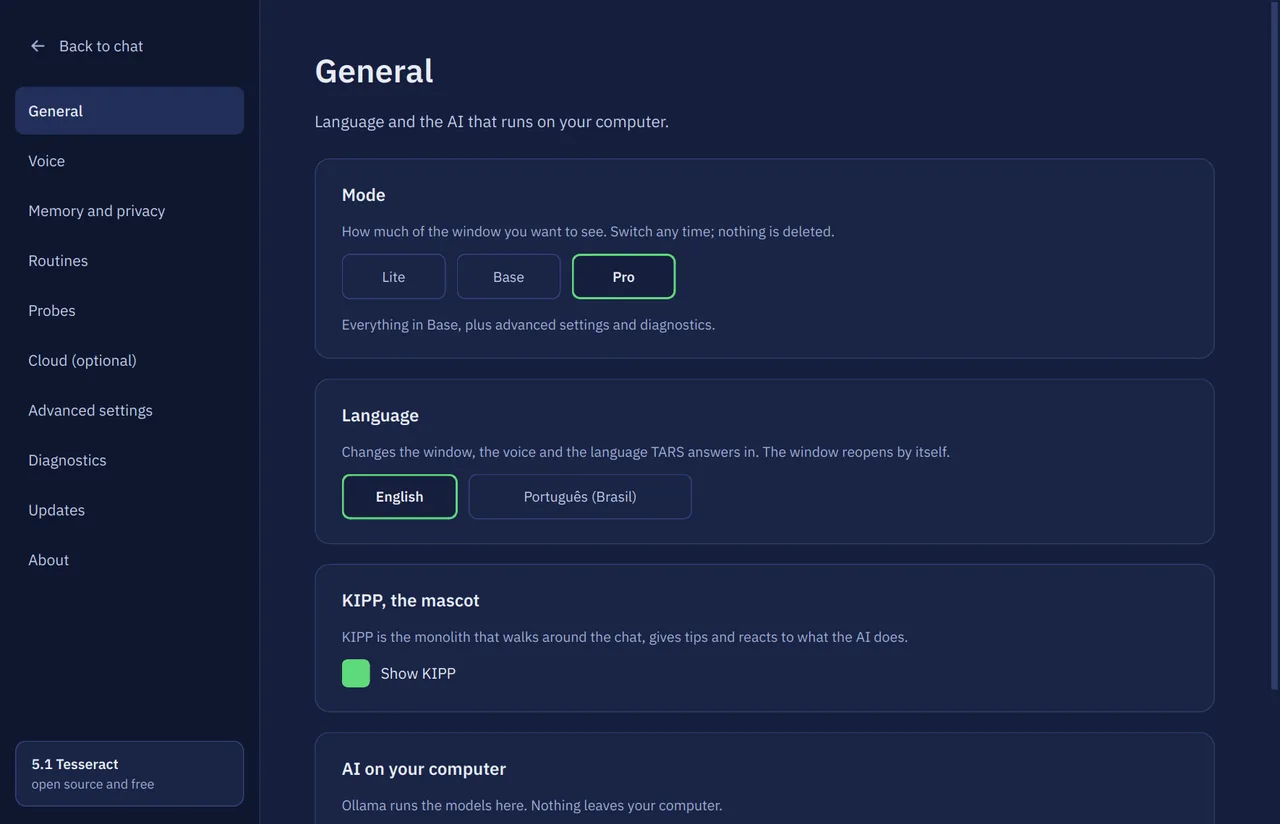
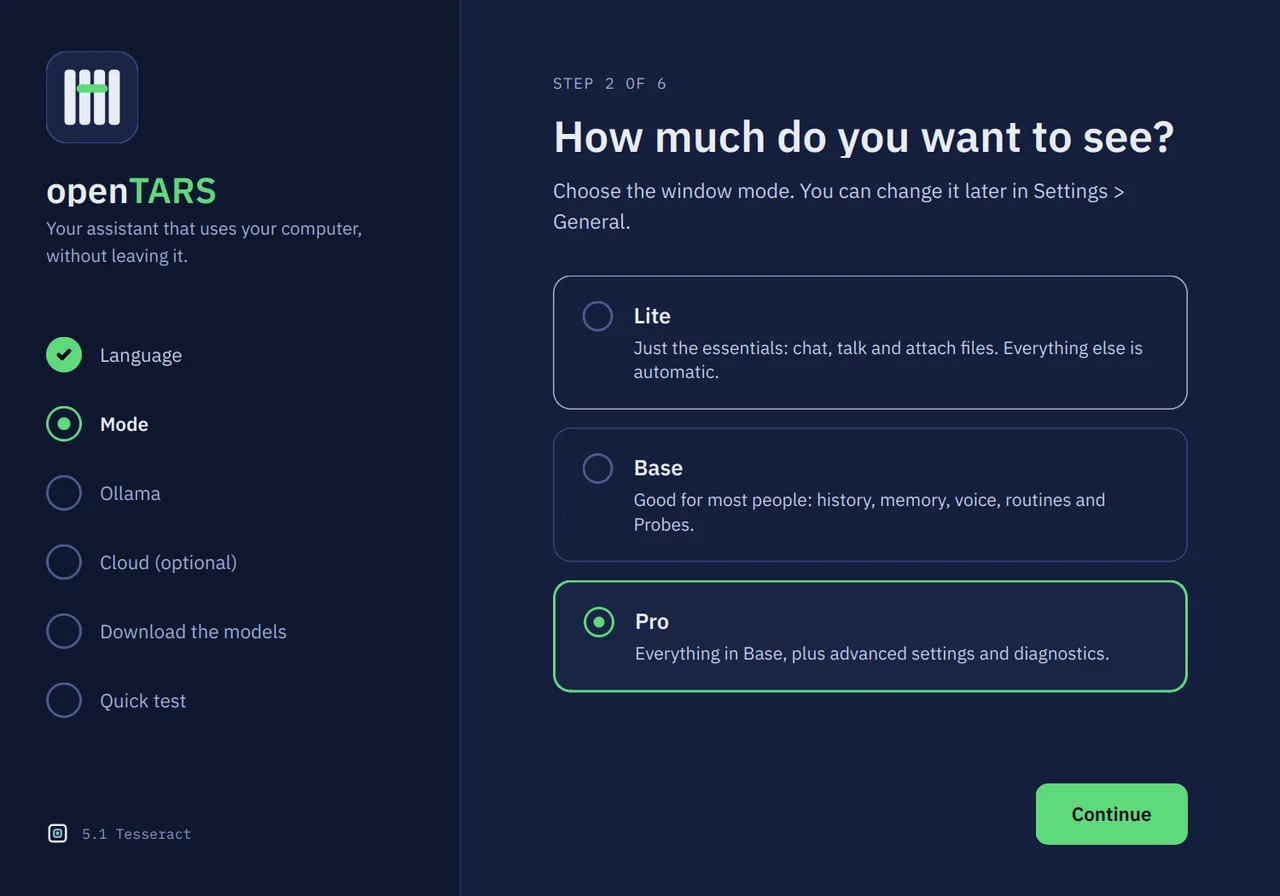
  • Three modes: Lite, Base and Pro

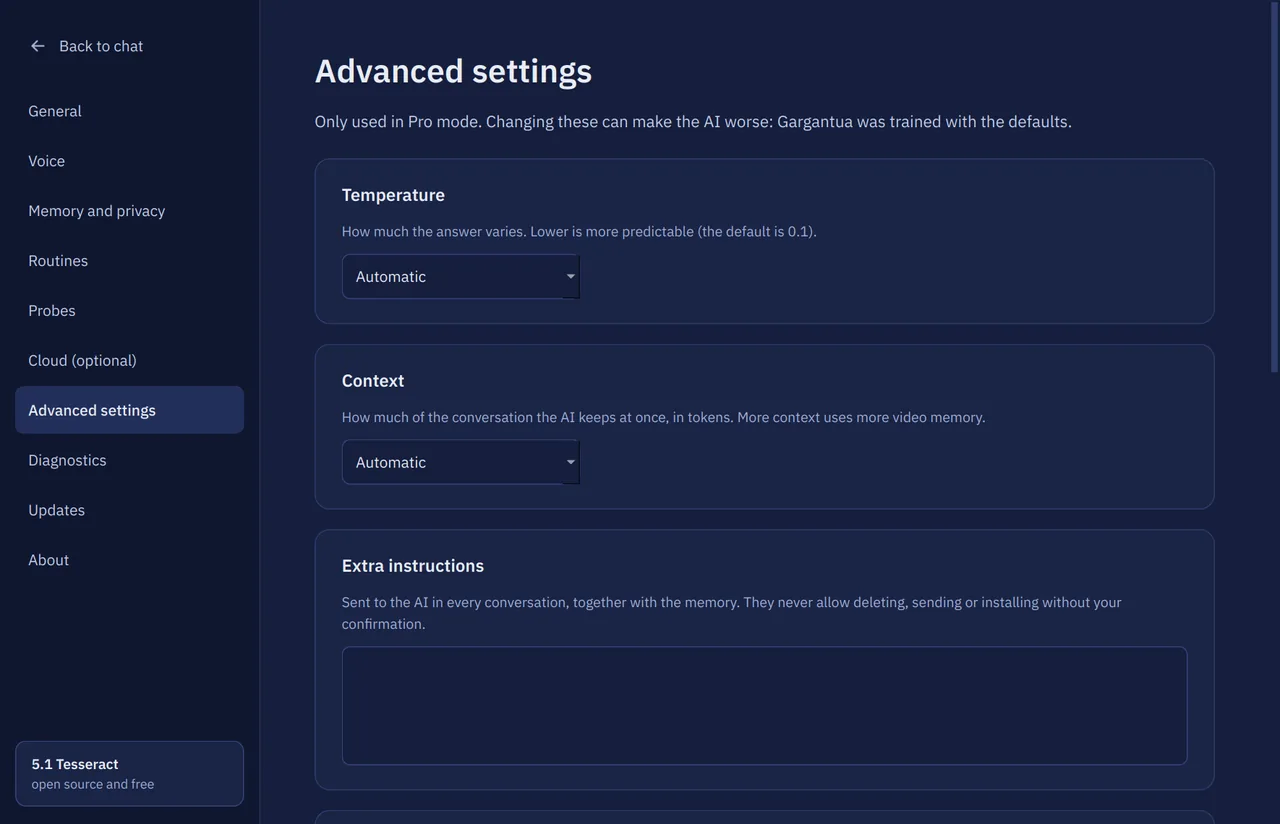
    Chosen on first run and switchable any time in Settings. Lite is just the chat, the microphone and attachments. Pro adds advanced settings and diagnostics. Updating keeps everything you had.

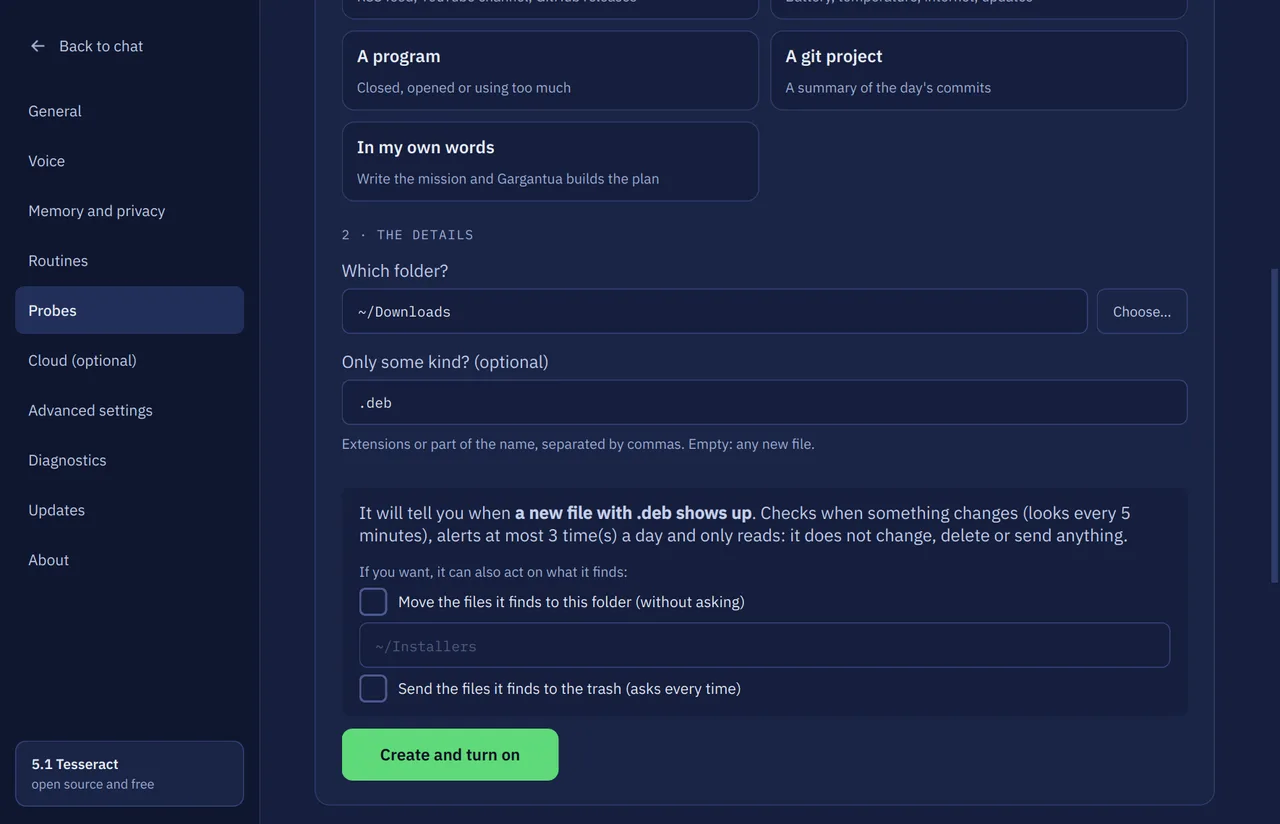
  • Probes

    Small watchers for a folder, a web page, news and releases (RSS, YouTube, GitHub), this computer (battery, temperature, internet, updates), a program or a git project. Three steps to create one, no AI needed, or write a mission in your own words. Alerts come with a bell next to the clock and inside the app. They only read; off until you turn them on. Moving a file is up to you; sending something to the trash asks every time.

  • Gargantua 2, the new main AI

    Smaller (1.6 GB) and it sees the screen itself, so Cooper was discontinued. Updating from the old Gargantua is one button in Settings; nothing is removed.

  • Gargantua Lite, built in

    Computers without a graphics card and with little memory get the smaller Gargantua from the first run: 0.6 GB, and it sees images.

  • Gargantua Code

    An optional coding model handles programming requests when installed.

  • A terminal like today's AI tools

    Resume a conversation, compact it, see how much context is left, plan before acting, review a diff before any file changes and undo it, read an AGENTS.md, and use opentars -p in scripts.

  • Cloud with your Ollama account

    Sign in without copying keys. Still off by default, and a cloud model is only used when you pick it.

  • Web search through SearXNG

    Off by default. The AI can search and read pages through a SearXNG on your own computer, and pages are treated as data, never as instructions.

  • More reliable tool use and fallback

    Fixes help Gargantua use its tools more reliably, and automatic fallback no longer switches to a much smaller model mid-request.

How it looks

Screenshots of the real app.

Settings, Probes: the three-step guide with a folder chosen, the sentence of what it will do and optional actions
Probes: pick what to watch, check the sentence, turn it on
Settings, General: choosing the Lite, Base or Pro mode
Lite, Base or Pro, any time
Settings, Advanced: temperature, context size and extra instructions
Pro: advanced settings
First run, step 2: choosing the mode
First run: choosing the mode

Planned for 5.2

  • Probes in their own computer

    Probes that act inside an isolated environment on your PC, away from your files and accounts.

  • More for the terminal

    Hooks, MCP servers and sub-agents, each with the same ask-first rules.